You can add transformation and lookup details to a mapping specification in the Mapping Specification grid.
Adding transformation details involves setting up:
- Business rule
- Extended business rule transformation
Ensure that you define business rules under the Transformations node for the same ETL Option as the Project ETL. For more information on defining business rules, refer to the Defining Transformations section.
Adding lookup details involves setting up:
- Trans lookup condition
- Lookup reference column
- Lookup on
Ensure that you scan the required table in the Metadata Manager to set trans lookup condition.
Adding Transformation Details
To add business rules to mapping specifications, follow these steps:
- Go to Application Menu > Data Catalog > Mapping Manager.
- In the Workspace Mappings pane, click a map.
- Right-click the header menu of the Mapping Specification grid.
- Select the Business Rule check box.
- Click
 .
. - Double-click the cell under the Business rule column for the required source column.
- Select a business rule.
-
Click
 .
.
By default, it opens the Mapping Specification tab.
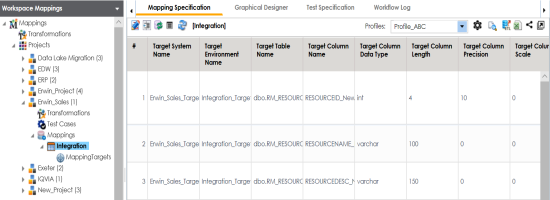
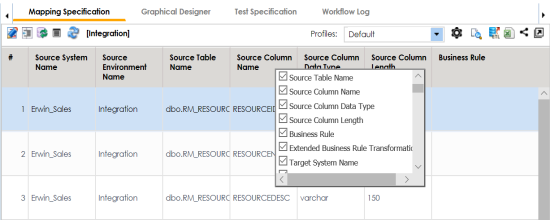
The Business Rule column is now available in the Mapping Specification grid.
You can now edit the Mapping Specification grid.
The available transformations appear.
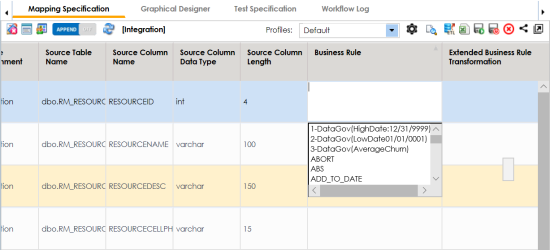
You can add business rules for multiple source columns.
The business rules are added to the mapping specification.
To add extended business rule transformations, follow these steps:
- Right-click the header menu of the Mapping Specification grid.
- Select the Extended Business Rule Transformation check box.
- Click .
- Click
 .
. - Select the Extended Business Rule check box.
- In the Mapping Specification grid, double-click the cell under the Extended Business rule Transformation column for the required source column.
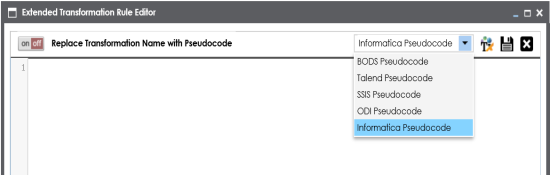
- Select a pseudocode based on the Project ETL.
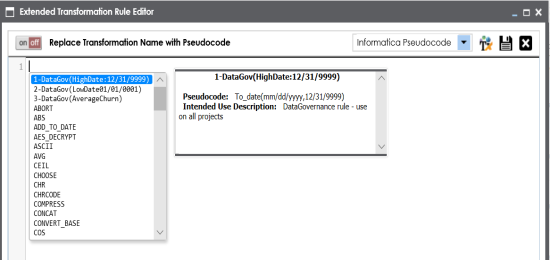
- Press Ctrl + Space keys.
- Double-click the required transformation.
- Click
 .
.
The Extended Business Rule Transformation column is now available in the Mapping Specification grid.
You can now edit the Mapping Specification grid.
The available options appear.
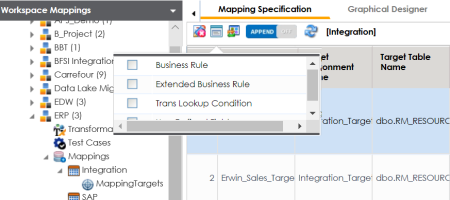
The Extended Transformation Rule Editor page appears.
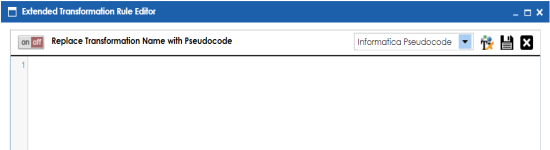
For example, if the Project ETL is Informatica then select Informatica Pseudocode.
The available transformations appear.
If the required transformation is not available in the list, use  to create and update the transformations list.
You can use  to replace the transformation name with the pseudocode.
The extended business rule transformation is added to the source column. You can add extended business rule transformation to multiple source columns. You can also configure UI labels for user defined fields. For more information on configuring UI labels, refer to the Configuring Language Settings topic.
Adding Lookup Details
To add lookup details in mapping specifications, follow these steps:
- Right-click the header menu of the mapping specification grid.
- Select Lookup Reference Column, Lookup On, and Trans Lookup Condition.
- Drag the required table from the Metadata Tree View pane and drop it under the Trans Lookup Condition column for the required source column.
- Click .
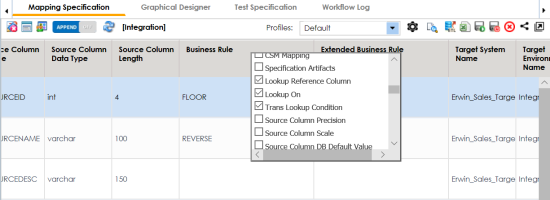
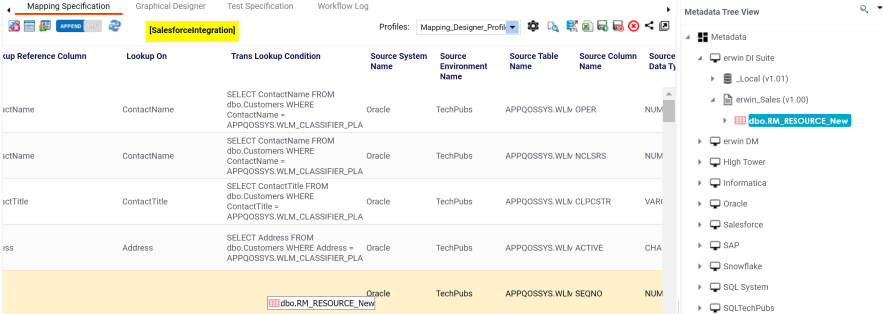
A SQL query populates.
Once trans lookup condition is set for the source column, you can add lookup reference column and lookup on.
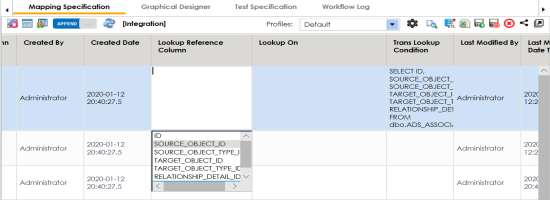
To add lookup reference column, double-click the cell under the Lookup Reference Column column and select the required option.
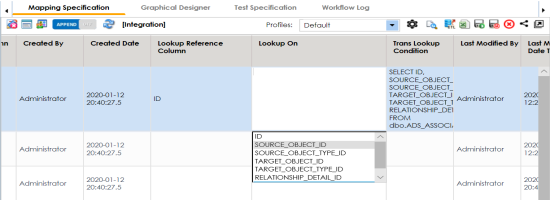
To add lookup on, double-click the cell under the Lookup On column and select the required option.
The lookup details are added in the Mapping Specification. You can add lookup details for multiple source columns.
Alternately, you can add transformation and lookup details to a mapping specification graphically. For more information about adding transformation and lookup details graphically, refer to the Graphical Designer topic.